Hiển thị các bài đăng có nhãn Windows. Hiển thị tất cả bài đăng

Thứ Hai, 25 tháng 11, 2013

Book Review: Developing Windows Store Apps with HTML5 and JavaScript

I recently accepted Packt Publishing's invitation to review Rami Sarieddine's book Developing Windows Store Apps with HTML5 and JavaScript. The Preface of the book describes the book as "a practical, hands-on guide that covers the basic and important features of a Windows Store app along with code examples that will show you how to develop these features." The Preface adds that the book is for "all developers who want to start creating apps for Windows 8" and for "everyone who wants to learn the basics of developing a Windows Store app."

Chapter 1: HTML5 Structure

Chapter 1 of Developing Windows Store Apps with HTML5 and JavaScript introduces "HTML5 structural elements" (semantic elements, media elements, form elements, custom data attributes) supported in the Windows 8 environment.

The section on semantic elements covers elements such as <header>, <nav>, <article>, and <address>. The section on media elements provides detailed coverage of the <video> and <audio> elements.

The section on form elements discusses the "new values for the type attribute are introduced to the <input> element." A table is used to display the various types (examples include tel, email, and search) with descriptions. There is discussion on these input types along with how to add validation to the input types.

Most of this initial chapter of Developing Windows Store Apps with HTML5 and JavaScript covers general HTML5 functionality, but there are a few references to items specific to Windows 8. For example, the last new material before the first chapter's Summary is on "using the Windows Library for JavaScript (WinJS) to achieve more advanced binding of data to HTML elements."

Chapter 2: Styling with CSS3

Like the first chapter, Chapter 2 focuses mostly on a general web concept, in this case Cascading Style Sheets (CSS). Sarieddine states that CSS is responsible for "defining the layout, the positioning, and the styling" of HTML elements such as those covered in the first chapter.

In introducing CSS, the second chapter of Developing Windows Store Apps with HTML5 and JavaScript provides an overview of four standard selectors (asterisk, ID, class, and element), attribute selectors (including prefix, suffix, substring [AKA contains], hyphen, and whitespace), combinator selectors (including descendant, child/direct, adjacent sibling, and general sibling), pseudo-class selectors, and pseudo-element selectors.

Chapter 2 does cover some Microsoft/Windows-specific items. Specifically, the chapter introduces the Grid layout and the Flexbox layout. The author explains that these have -ms prefixes because they are currently specific to Microsoft (Windows 8/Internet Explorer 10), but that they are moving through the W3C standardization process.

The second chapter of Developing Windows Store Apps with HTML5 and JavaScript covers animation with CSS and introduces CSS transforms before concluding with brief discussion of CSS media queries.

Chapter 3: JavaScript for Windows Apps

Developing Windows Store Apps with HTML5 and JavaScript's third chapter covers "features provided by the Windows Library for JavaScript (the WinJS library) that has been introduced by Microsoft to provide access to Windows Runtime for the Windows Store apps using JavaScript." The delivered implication of this is that this is the first chapter of the book that is heavily focused on developing specifically Windows Store Apps.

Sarieddine covers use of Promise objects to implement asynchronous programming in JavaScript's single-threaded environment rather than using callback functions directly. The author also covers use of the WinJS.Utilities namespace wrappers of document.querySelector and querySelectorAll. Coverage of the WinJS.xhr function begins with the description of it being a wrapper to "calls to XMLHttpRequest in a Promise object."

Chapter 3 concludes with a discussion of "standard built-in HTML controls" as well as WinJS-provided controls "new and feature-rich controls designed for Windows Store apps using JavaScript." This discussion includes how WinJS-provided controls are handled differently in terms of code than standard HTML controls.

This third chapter is heavily WinJS-oriented. It also includes the first non-trivial discussion and illustrations related to use of Visual Studio, a subject receiving even more focus in the fourth chapter.

Chapter 4: Developing Apps with JavaScript

Chapter 4 of Developing Windows Store Apps with HTML5 and JavaScript is intended to help the reader "get started with developing a Windows 8 app using JavaScript." It was early in this chapter that I learned that Windows Store apps run only on Windows 8. The chapter discusses two approaches for acquiring Windows 8 and downloading necessary development tools such as Visual Studio Express 2012 for Windows 8 from Windows Dev Center. The chapter discusses how to obtain or renew a free developer license via Visual Studio.

The fourth chapter also discusses languages other than HTML5/CSS3 that can be used to develop Windows Store apps. It then moves onto covering development using Visual Studio templates. Several pages are devoted to discussion on using these standard templates and there are several illustrations of applying Visual Studio in this development.

Chapter 5: Binding Data to the App

The fifth chapter of Developing Windows Store Apps with HTML5 and JavaScript discusses "how to implement data binding from different data sources to the elements in the app." As part of this discussion of data binding, the chapter covers the WinJS.Binding namespace ("Windows library for JavaScript binding") for binding styles and data to HTML elements. Examples in this section illustrate updating of HTML elements' values and styles.

Interestingly, it is in this fifth chapter that the author points out that "Windows 8 JavaScript has native support for JSON." The chapter's examples also discuss and illustrate use of Windows.Storage.

Chapter 5's coverage of formatting and displaying data introduces "the most famous controls" of ListView and FlipView and then focuses on ListView. This portion of the chapter then moves on to illustrate use of WinJS templates (WinJS.Binding.Template). The final topic of Chapter 5 is sorting and filtering data and more example code is used here for illustration.

Chapter 6: Making the App Responsive

Chapter 6 focuses on how to make a Windows 8 application "responsive so that it handles screen sizes and view state changes and responds to zooming in and out." The chapter begins by introducing view states: full screen landscape, full screen portrait, snapped view, and filled view. The chapter discusses snapping (required for apps to support) and rotation (recommended for apps to support). It then moves onto covering use of "CSS media queries" and "JavaScript layout change events."

Chapter 6 also introduces semantic zoom, described on the Guidelines for Semantic Zoom page as "a touch-optimized technique used by Windows Store apps in Windows 8 for presenting and navigating large sets of related data or content within a single view." Sarieddine describes semantic zoom as a technique "used by Windows Store apps for presenting—in a single view—two levels of detail for large sets of related content while providing quicker navigation." There are several pages of code illustrations and explanatory text on incorporating semantic zoom in the Windows 8 application.

Chapter 7: Making the App Live with Tiles and Notifications

The seventh chapter of Developing Windows Store Apps with HTML5 and JavaScript introduces the concept of Windows 8 tiles. The chapter discusses the app tile ("a core part of your app") and live tiles ("shows the best of what's happening inside the app"). Windows 8 Badges and Notifications are also covered in this chapter.

Chapter 8: Signing Users In

Chapter 8 is focused on authentication in a Windows 8 app. The chapter discusses use of the Windows 8 SDK and "a set of APIs" that "allow Windows Store apps to enable single sign on with Microsoft accounts and to integrate with info in Microsoft SkyDrive, Outlook.com, and Windows Live Messenger."

The eighth chapter's coverage includes discussion of open standards supported by Live Connect: OAuth 2.0, REST, and JSON. The chapter also covers reserving an app name on the Windows store, working with Visual Studio 2012 for Windows 8, and working with Live SDK downloads.

Chapter 9: Adding Menus and Commands

Chapter 9 of Developing Windows Store Apps with HTML5 and JavaScript focuses on adding menus and commands to the app bar. This coverage includes discussion on where to place the app bar and how the UX guidelines recommend placing the app bar on the bottom because the navigation bar goes on top of a Windows 8 app.

Chapter 10: Packaging and Publishing

Developing Windows Store Apps with HTML5 and JavaScript's tenth chapter introduces the Windows Store and likens it to "a huge shopping mall" in which the reader's new app would be like "a small shop in that mall." The author states that the Windows Store Dashboard is "the place where you submit the app, pave its way to the market, and monitor how it is doing there."

The first step in the process of submitting a Windows app to the Windows Store for certification was covered in the chapter on authentication (Chapter 8) and this chapter picks up where that left off. Steps covered in this chapter include providing the application name, setting the "selling details," adding services, setting age and rating certifications, specifying cryptography and encryption used by the app, uploading app packages generated with Visual Studio, adding app description and other metadata about the app, and notes to testers evaluating app for Windows Store.

The chapter moves from coverage of the Windows App submission process using Windows Store Dashboard to using Visual Studio's embedded Windows Store support. Of particular interest in this section is coverage of how to use Visual Studio to package a Windows 8 app so that the "package is consistent with all the app-specific and developer-specific details that the Store requires."

The majority of this chapter's examples depend on having a Windows Store developer account. The chapter also includes a reference to a page on avoiding common certification failures.

Chapter 11: Developing Apps with XAML

All of the earlier chapters of Developing Windows Store Apps with HTML5 and JavaScript focused on developing Windows Store apps with traditional web development technologies HTML, CSS, and JavaScript, but the final chapter looks at using different platforms for creating Windows Store Apps. Although most of this chapter looks at developing Windows Store apps using the alternate development platform of XAML/C#, there is brief discussion of more general considerations when using alternate platforms for developing Windows Store apps. The chapter specifically mentions multiple approaches using C++ and C# to develop Windows Store apps.

Using Extensible Application Markup Language (XAML) for developing Windows 8 applications is described similar to the approach used for JavaScript as discussed earlier in this book. One of the examples demonstrates using Visual Studio standard Windows Store App templates such as Blank App (XAML), Grid App (XAML), and Split App (XAML). The chapter dives into basics of developing an XAML-based Windows Store app and introduces XAML based on HTML and XML concepts and differences.

The final chapter has a "Summary" section, but the final paragraph of that chapter is actually a summary of the entire book. A potential purchaser of this book could read this final paragraph on page 158 to get a quick overview of what the book covers.

Targeted Audience

Developing Windows Store Apps with HTML5 and JavaScript is well-titled in terms of describing what the book is about. The book clearly fulfills its objective of demonstrating how to use HTML5 and JavaScript to develop Windows Store Apps. Although the book does briefly discuss other technologies and platforms for building Windows Store Apps, these discussions are very brief and and mostly references rather than detailed descriptions.

The reader most likely to benefit from this book is a developer interested in applying HTML, JavaScript, and CSS to develop Windows Store apps. The book does provide introductory material on these technologies for those not familiar with them, but at least some minor HTML/CSS/JavaScript experience would be a benefit for the reader.

This book would obviously not be a good fit for someone wishing to learn how to develop apps for any environment other than the Windows Store and it would only be of marginal benefit to readers wanting to develop Windows Store apps with technologies other than HTML, JavaScript, and CSS.

Conclusion

Developing Windows Store Apps with HTML5 and JavaScript delivers on what its title advertises. It provides as comprehensive of an introduction as roughly 160 pages allows to developing and deploying Windows Store apps using JavaScript and HTML. Packt Publishing provided me a PDF for this review and one of the advantages of the electronic form is the numerous screen snapshots of Windows 8 apps and Visual Studio are in full color. I especially liked that little time was wasted in the book and it efficiently covered quite a bit of ground in a relatively short number of pages.

Additional Information

Here are some additional references related to this book including other reviews of this book.

Thứ Bảy, 23 tháng 4, 2011

Peeking at Office 2007 Document Contents with Groovy

The Microsoft Office 2007 suite of products introduced default support of documents stored in an XML format. Specifically, Office (2007) Open XML File Formats were introduced. Although introduced in conjunction with Office 2007, conversion tools were provided so older versions of these products could also read and write this XML-based format. As documented in Walkthrough: Word 2007 XML Format, there is more than just XML to the new format. Many of the XML files are compressed and the overall format is a compressed ZIP file (albeit typically with a .docx) file extension of numerous content files.

Because Java's JAR file is based on the ZIP format and because Java provides numerous useful constructs for dealing with JAR (and ZIP) files, it is easy to use Groovy to manipulate the contents of a Office 2007 file. In this post, I demonstrate a simple Groovy script that displays a content listing for one of these Office 2007 files.

In Walkthrough: Word 2007 XML Format, Erika Ehrli provides some steps one can take to see the contents of an Office 2007 file. These steps include creating a temporary folder, saving a Word document into that newly created temporary folder, adding a ZIP extension to the saved file, and double clicking on it to open it or extract its contents (the .zip extension makes this automatic). Today's more sophisticated zip-oriented tools can open it without these steps and I'll later show a screen snapshot of doing just that.

For my example, I'm using a draft version (originally written in Word 2003) of my Oracle Technology Network article "Add Some Spring to Your Oracle JDBC." This November 2005 article has not been available online since the merge and consolidation of Oracle articles with Sun-hosted articles, but I still had my draft that I'm using as the example here. The following screen snapshot demonstrates saving the article from Word 2003 as a Word 2007 document.


The next screen snapshot shows that the Word 2007 file is stored with a .docx extension.


As discussed previously, this is really a ZIP file, so it can be opened with ZIP-friendly tools. The next screen snapshot display some of the contents of this Word 2007 format file via the 7-Zip tool.


In Groovy code, I can use classes from the java.util.zip package to similarly view the contents of an Office 2007 file. The next Groovy code listing shows how this might be implemented.

showContentsOfficeFile.groovy
#!/usr/bin/env groovy
// showContentsOfficeFile.groovy

import java.util.zip.ZipEntry
import java.util.zip.ZipFile

if (!args || args.length < 1)
{
println "Please provide path/name of Office file as first argument."
System.exit(-1)
}
def fileName = args[0]

def file = new ZipFile(fileName)
def entries = file.entries()
entries.each
{
def datetime = Calendar.getInstance()
datetime.setTimeInMillis(it.time)
// Use GDK's String.format convenience method here!
print it.name
println " created on ${datetime.format('EEE, d MMM yyyy HH:mm:ss Z')}"
print "\t Sizes (bytes): ${it.size} original, ${it.compressedSize} compressed ("
println "${convertCompressionMethodToString(it.method)})"
}


/**
* Convert the provided integer representing ZipEntry compression method into
* a more readable String.
*
* @param newCompressionMethod Integer representing compression type of a
* ZipEntry as provided by ZipEntry.getMethod().
* @return A String representation of compression method.
*/
def String convertCompressionMethodToString(final int newCompressionMethod)
{
String returnedCompressionMethodStr = "Unknown"
if (newCompressionMethod == ZipEntry.DEFLATED)
{
returnedCompressionMethodStr = "Deflated"
}
else if (newCompressionMethod == ZipEntry.STORED)
{
returnedCompressionMethodStr = "Stored"
}
return returnedCompressionMethodStr
}

The output of the above script when run against the Word 2007 file mentioned previously is shown next.


The Groovy code shown above produces output similar to that provided by the 7-Zip output shown earlier with details such as content names, normal and compressed sizes, and modification date. I was a little concerned that my Groovy script was returning a 1980 modification date for the contents of this Office 2007 file, but then noticed that 7-Zip reports the same modification date. It's not null, but it's not much more useful.

The Groovy code demonstrates use of java.util.zip.ZipFile and java.util.zip.ZipEntry to access the innards of the Microsoft 2007 file. Another Groovyism demonstrated by the above script is the use of the GDK's Calendar.format(String) method. This convenience method is a "shortcut for SimpleDateFormat to output a String representation of this calendar instance."


Conclusion

The example in this post demonstrates a simple script for viewing contents of a Microsoft 2007 file. This viewing of Microsoft 2007 format contents is nothing that cannot already be done via simple tools. The real potential in accessing these via Groovy is, of course, the ability to write custom scripts to programatically manipulate these contents or to do other things based on these contents.

Thứ Hai, 19 tháng 7, 2010

split Command for DOS/Windows Via Groovy

One of the commands that I miss most from Linux when working in Windows/DOS environments is the split command.  This extremely handy command allows one to split a large file into multiple smaller files determined by the specification of either by number of lines or number of bytes (or kilobytes or megabytes) desired for the smaller files.  There are many uses for such functionality including fitting files onto certain media, making files "readable" by applications with file length restrictions, and so on.  Unfortunately, I'm not aware of a split equivalent for Windows or DOS.  PowerShell can be scripted to do something like this, but that implementation is specific to PowerShell.  There are also third-party products available that perform similar functionality.  However, these existing solutions leave just enough to be desired that I have the motivation to implement a split equivalent in Groovy and that is the subject of this post.  Because Groovy runs on the JVM, this implementation could be theoretically run on any operating system with a modern Java Virtual Machine implementation.

To test and demonstrate the Groovy-based split script, some type of source file is required.  I'll use Groovy to easily generate this source file.  The following simple Groovy script, buildFileToSplit.groovy, creates a simple text file that can be split.

#!/usr/bin/env groovy
//
// buildFileToSplit.groovy
//
// Accepts single argument for number of lines to be written to generated file.
// If no number of lines is specified, uses default of 100,000 lines.
//
if (!args)
{
println "\n\nUsage: buildFileToSplit.groovy fileName lineCount\n"
println "where fileName is name of file to be generated and lineCount is the"
println "number of lines to be placed in the generated file."
System.exit(-1)
}
fileName = args[0]
numberOfLines = args.length > 1 ? args[1] as Integer : 100000
file = new File(fileName)
// erases output file if it already existed
file.delete()
1.upto(numberOfLines, {file << "This is line #${it}.\n"})

This simple script uses Groovy's implicitly available "args" handle to access command-line arguments for the buildFileToSplit.groovy script.  It then creates a single file of size based on the provided number of lines argument.  Each line is largely unoriginal and states "This is line #" followed by the line number.  It's not a fancy source file, but it works for the splitting example.  The next screen snapshot shows it run and its output.


The generated source.txt file looks like this (only beginning and ending of it is shown here):

This is line #1.
This is line #2.
This is line #3.
This is line #4.
This is line #5.
This is line #6.
This is line #7.
This is line #8.
This is line #9.
This is line #10.
. . .
This is line #239.
This is line #240.
This is line #241.
This is line #242.
This is line #243.
This is line #244.
This is line #245.
This is line #246.
This is line #247.
This is line #248.
This is line #249.
This is line #250.

There is now a source file available to be split. This script is significantly longer because I have made it check for more error conditions, because it needs to handle more command-line parameters, and simply because it does more than the script that generated the source file. The script, simply called split.groovy, is shown next:

#!/usr/bin/env groovy
//
// split.groovy
//
// Split single file into multiple files similarly to how Unix/Linux split
// command works. This version of the script is intended for text files only.
//
// This script does differ from the Linux/Unix variant in certain ways. For
// example, this script's output messages differ in several cases and this
// script requires that the name of the file being split is provided as a
// command-line argument rather than providing the option to provide it as
// standard input. This script also provides a "-v" ("--version") option not
// advertised for the Linux/Unix version.
//
// CAUTION: This script is intended only as an illustration of using Groovy to
// emulate the Unix/Linux script command. It is not intended for production
// use as-is. This script is designed to make back-up copies of files generated
// from the splitting of a single source file, but only one back-up version is
// created and is overridden by any further requests.
//
// http://marxsoftware.blogspot.com/
//

import java.text.NumberFormat

NEW_LINE = System.getProperty("line.separator")

//
// Use Groovy's CliBuilder for command-line argument processing
//

def cli = new CliBuilder(usage: 'split [OPTION] [INPUT [PREFIX]]')
cli.with
{
h(longOpt: 'help', 'Usage Information')
a(longOpt: 'suffix-length', type: Number, 'Use suffixes of length N (default is 2)', args: 1)
b(longOpt: 'bytes', type: Number, 'Size of each output file in bytes', args: 1)
l(longOpt: 'lines', type: Number, 'Number of lines per output file', args: 1)
t(longOpt: 'verbose', 'Print diagnostic to standard error just before each output file is opened', args: 0)
v(longOpt: 'version', 'Output version and exit', args: 0)
}
def opt = cli.parse(args)
if (!opt || opt.h) {cli.usage(); return}
if (opt.v) {println "Version 0.1 (July 2010)"; return}
if (!opt.b && !opt.l)
{
println "Specify length of split files with either number of bytes or number of lines"
cli.usage()
return
}
if (opt.a && !opt.a.isNumber()) {println "Suffix length must be a number"; cli.usage(); return}
if (opt.b && !opt.b.isNumber()) {println "Files size in bytes must be a number"; cli.usage(); return}
if (opt.l && !opt.l.isNumber()) {println "Lines number must be a number"; cli.usage(); return}

//
// Determine whether split files will be sized by number of lines or number of bytes
//

private enum LINES_OR_BYTES_ENUM { BYTES, LINES }
bytesOrLines = LINES_OR_BYTES_ENUM.LINES
def suffixLength = opt.a ? opt.a.toBigInteger() : 2
if (suffixLength < 0)
{
suffixLength = 2
}
def numberLines = opt.l ? opt.l.toBigInteger() : 0
def numberBytes = opt.b ? opt.b.toBigInteger() : 0
if (!numberLines && !numberBytes)
{
println "File size must be specified in either non-zero bytes or non-zero lines."
return
}
else if (numberLines && numberBytes)
{
println "Ambiguous: must specify only number of lines or only number of bytes"
return
}
else if (numberBytes)
{
bytesOrLines = LINES_OR_BYTES_ENUM.BYTES
}
else
{
bytesOrLines = LINES_OR_BYTES_ENUM.LINES
}

def verboseMode = opt.t
if (verboseMode)
{
print "Creating output files of size "
print "${numberLines ?: numberBytes} ${numberLines ? 'lines' : 'bytes'} each "
println "and outfile file suffix size of ${suffixLength}."
}
fileSuffixFormat = NumberFormat.getInstance()
fileSuffixFormat.setMinimumIntegerDigits(suffixLength)
fileSuffixFormat.setGroupingUsed(false)
filename = ""
candidateFileName = opt.arguments()[0]
if (candidateFileName == null)
{
println "No source file was specified for splitting."
System.exit(-2)
}
else if (candidateFileName.startsWith("-"))
{
println "Ignoring option ${candidateFileName} and exiting."
System.exit(-3)
}
else
{
println "Processing ${candidateFileName} as source file name."
filename = candidateFileName
}
def prefix = opt.arguments().size() > 1 ? opt.arguments()[1] : "x"
try
{
file = new File(filename)
if (!file.exists())
{
println "Source file ${filename} is not a valid source file."
System.exit(-4)
}

int fileCounter = 1
firstFileName = "${prefix}${fileSuffixFormat.format(0)}"
if (verboseMode)
{
System.err.println "Creating file ${firstFileName}..."
}
outFile = createFile(firstFileName)
if (bytesOrLines == LINES_OR_BYTES_ENUM.BYTES)
{
int byteCounter = 0
file.eachByte
{
if (byteCounter < numberBytes)
{
outFile << new String(it)
}
else
{
nextOutputFileName = "${prefix}${fileSuffixFormat.format(fileCounter)}"
if (verboseMode)
{
System.err.println "Creating file ${nextOutputFileName}..."
}
outFile = createFile(nextOutputFileName)
outFile << new String(it)
fileCounter++
byteCounter = 0
}
byteCounter++
}
}
else
{
int lineCounter = 0
file.eachLine
{
if (lineCounter < numberLines)
{
outFile << it << NEW_LINE
}
else
{
nextOutputFileName = "${prefix}${fileSuffixFormat.format(fileCounter)}"
if (verboseMode)
{
System.err.println "Creating file ${nextOutputFileName}..."
}
outFile = createFile(nextOutputFileName)
outFile << it << NEW_LINE
fileCounter++
lineCounter = 0
}
lineCounter++
}
}
}
catch (FileNotFoundException fnfEx)
{
println System.properties
println "${fileName} is not a valid source file: ${fnfEx.toString()}"
System.exit(-3)
}
catch (NullPointerException npe)
{
println "NullPointerException encountered: ${npe.toString()}"
System.exit(-4)
}

/**
* Create a file with the provided file name.
*
* @param fileName Name of file to be created.
* @return File created with the provided name; null if provided name is null or
* empty.
*/
def File createFile(String fileName)
{
if (!fileName)
{
println "Cannot create a file from a null or empty filename."
return null
}
outFile = new File(fileName)
if (outFile.exists())
{
outFile.renameTo(new File(fileName + ".bak"))
outFile = new File(fileName)
}
return outFile
}

This script could be optimized and better modularized, but it fulfills its purpose of demonstrating how Groovy provides a nice approach for implementing platform-independent utility scripts.

The next screen snapshot demonstrates the script's use of Groovy's built-in CLI support.


The next two screen snapshots demonstrate splitting the source file into smaller files by line numbers and by bytes respectively (and using different suffix and file name options).  The first image demonstrates that three output files are generated when split into 100 lines (250 lines in source file).  The -a option specifies that four integer places will be in the filename.  Unlike the Linux split, this script does not guarantee that the user-provided number of integers is sufficient to cover the number of necessary output files.


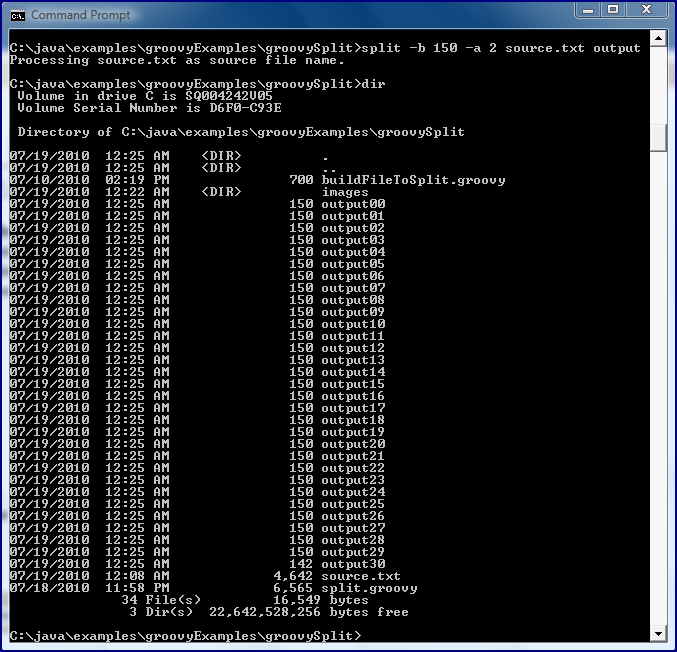
The second image (next image) shows the script splitting the source file based on number of bytes and using a different filename and only two integers for the numbering.


As mentioned above, this script is a "rough cut."  It could be improved in terms of the code itself as well as in terms of functionality (extended to better support binary formats and to make sure file name suffixes are sufficiently long for number of output files).  However, the script here does demonstrate one of my favorite uses of Groovy: to write platform-independent scripts using familiar Java and Groovy libraries (SDK and GDK).