Thứ Ba, 4 tháng 1, 2011

HTML5 Local Storage: Web Storage

Cookie Monster is not the only one looking past cookies. The Web Storage specification aims to define "an API for persistent data storage of key-value pair data in Web clients." Like the Geolocation API specification I discussed in a previous blog post, this Web Storage specification is separate and distinct from the HTML5 specification (though Web Storage was once part of HTML5). As do many, I lump it in under the "greater" meaning of HTML5 (a bunch of cool new web stuff) rather than strictly adhering to whether it's covered in the HTML5 specification or not. Throughout this post, I may refer to this standardized approach for storing data on the web client as either HTML5 Storage or HTML5 Local Storage, but its official name is Web Storage and it is often referred to as DOM Storage as well.

As stated already, Web Storage (AKA "HTML5 Storage") is designed to store name/value (it calls them key/value) pairs on the web client. The closest analogy may be cookies, but Web Storage (AKA "HTML5 Local Storage") offers numerous advantages over cookies. In this blog post, I look at using Web Storage in Chrome 8, Safari 5, Internet Explorer 8, and Firefox 3.6. Amazingly, even shockingly, the same code used in my example works across all four browsers!

Here is the HTML/JavaScript code listing for my example (it's all encapsulated in a single file called Storage.html).

Storage.html
<html lang="en">
<head>
<meta charset="utf-8" />
<title>HTML5/Web/DOM Storage Demonstrated</title>
<script language="javascript">
/*
* Indicate if this browser supports local storage.
*/
function html5StorageSupported()
{
return ('localStorage' in window) && window['localStorage'] !== null;
}
/*
* Provide number of elements in storage.
*/
function determineNumberStoredElements()
{
return html5StorageSupported() ? localStorage.length : "Not Applicable";
}
/*
* Provide indication on web page of whether this browser supports local storage.
*/
function initialize()
{
document.form1.supported.value = html5StorageSupported() ? "Yes!" : "No (:";
document.form1.numStored.value = determineNumberStoredElements();
}
/*
* Save favorite movies to local storage.
*/
function persistFavoriteMovies()
{
if (html5StorageSupported())
{
for (var i = 1; i <= 10; i++)
{
var movie = document.form1["movie" + i].value;
var storageIndex = "rmoug.td2011.movie." + i;
//alert("Movie #" + i + " [" + storageIndex+ "]: " + movie);
localStorage[storageIndex] = movie;
}
document.form1.numStored.value = determineNumberStoredElements();
}
else
{
alert("Cannot save to local storage because it's not supported.");
}
}
/*
* Load favorite movies from local storage.
*/
function loadFavoriteMovies()
{
if (html5StorageSupported())
{
for (var i = 1; i <= 10; i++)
{
document.form1["movie" + i].value = localStorage["rmoug.td2011.movie." + i];
}
}
}
/*
* Clear favorite movies from both local storage and from form fields.
*/
function clearFavoriteMovies()
{
if (html5StorageSupported())
{
// Clear favorite movies from local storage
localStorage.clear();

// Clear fields of movies content
for (var i = 1; i <= 10; i++)
{
document.form1["movie" + i].value = null;
}
document.form1.numStored.value = determineNumberStoredElements();
}
}
</script>
</head>

<body onload="initialize()">

<h1>HTML5/Web/DOM Storage</h1>

<form name="form1">
<table>
<tr>
<td>Does this browser support local storage?</td>
<td><input type="text" name="supported"></td>
</tr>
<tr>
<td>Number of Stored Elements</td>
<td><input type="text" name="numStored"></td>
</tr>
</table>
<table>
<tr>
<td colspan="2" style="font-weight: bold;" align="center">Favorite Movies</td>
</tr>
<tr>
<td>#1</td>
<td><input type="text" name="movie1"></td>
</tr>
<tr>
<td>#2</td>
<td><input type="text" name="movie2"></td>
</tr>
<tr>
<td>#3</td>
<td><input type="text" name="movie3"></td>
</tr>
<tr>
<td>#4</td>
<td><input type="text" name="movie4"></td>
</tr>
<tr>
<td>#5</td>
<td><input type="text" name="movie5"></td>
</tr>
<tr>
<td>#6</td>
<td><input type="text" name="movie6"></td>
</tr>
<tr>
<td>#7</td>
<td><input type="text" name="movie7"></td>
</tr>
<tr>
<td>#8</td>
<td><input type="text" name="movie8"></td>
</tr>
<tr>
<td>#9</td>
<td><input type="text" name="movie9"></td>
</tr>
<tr>
<td>#10</td>
<td><input type="text" name="movie10"></td>
</tr>
<tr>
<td colspan="2">
<input type="button" value="Load" onclick="loadFavoriteMovies()">
<input type="button" value="Save" onclick="persistFavoriteMovies()">
<input type="button" value="Clear" onclick="clearFavoriteMovies()">
</td>
</tr>
</table>
</form>

</body>
</html>

The code listing above is fairly straightforward, but it does demonstrate use of localStorage.getItem(key) (via array syntax in JavaScript function loadFavoriteMovies()), localStorage.setItem(key, value) (via array syntax in the JavaScript function persistFavoriteMovies()), localStorage.clear(), and localStorage.length. It also demonstrates how to check whether the browser supports this localStorage attribute.

For the WebKit-based browsers (Safari and Chrome), I can run this test locally using the file URI scheme and it works properly. For Internet Explorer and Firefox, I was only able to get the above example to work when the Storage.html page was accessed on a deployed server. It doesn't really matter which server, but I used GlassFish. Bugzilla@Mozilla's Bug 507361 ("localStorage doesn't work in file:/// documents") documents this issue for Firefox and it also appears to be a known issue for Internet Explorer (including version 9).

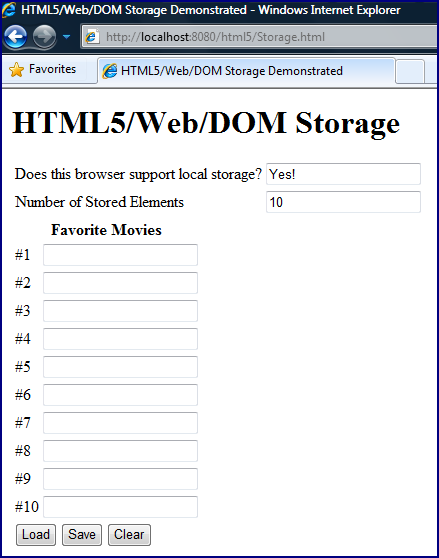
The example in the code above leads to a pretty simple page. The user can click the "Save" button to persist any typed-in movie titles to local persistence. This means that the data is persisted even if the user leaves the page or even closes the browser. Upon returning to the page, the user can click the "Load" button and the previously saved values will be available again. The "Clear" button clears the local persistence. During all of this, two fields at the top indicate whether the browser supports localStorage and the number of elements currently stored in local storage.

Static screen snapshots will always lack when compared to seeing dynamic behavior in action, but I attempt to demonstrate this flow through a series of screen snapshots here with the four browsers previously mentioned. The first set of screen snapshots show how the page appears when first presented in Chrome.

Chrome Initial Page Load


When the movie names are typed in and the "Save" button is clicked, the page appears in Chrome as shown next.

Chrome Data Saved to Local Storage

The number of elements in storage is updated to reflect that the ten movie titles have been persisted. When the browser is closed and then reopened, the movie titles are gone, but the number of elements in storage (10) indicates that they are still persisted.

Chrome Closed and Reopened

The user can now click on the "Load" button to have the movie titles reloaded into the fields.

Chrome: Data Reloaded

I have not demonstrated the "Clear" button. It simply clears the fields and clears the entries from the client storage, setting the number of stored elements back to zero. The above screen snapshots were for Chrome. In a very satisfying surprise, the other three browsers I'm covering in this post all behave remarkably consistently. They are shown next with the screen snapshots grouped by browser rather than by step in the demonstration.

Safari 5


Firefox 3.6


Internet Explorer 8


Disabling Web Storage

Local storage provided by standardized implementations of Web Storage provide tremendous potential benefit to users. However, as we have learned with cookies, JavaScript, and the Flash Player, not all users want these things turned on. In this section, I briefly summarize how to disable Web Storage in the browsers covered in this post.

Web Storage capability is disabled in Internet Explorer via "Tools -> Internet Options" ("Advanced Tab" option "Enable DOM Storage" in "Security" section) as shown in the next screen snapshot:


When that box for "Enable DOM Storage" is unchecked (it is checked/enabled by default), the example I have used in this post no longer behaves the same. Instead, it reports that the storage feature is not supported and that the count of stored elements is not applicable. It is shown in the next image.


It is worth noting here that explicitly disabling Internet Explorer's "Enable DOM Storage" support leads to the page reporting that the feature is not supported. I earlier mentioned that Internet Explorer local storage only worked properly when the page was hosted on a web server and accessed via HTTP rather than file://. However, in that case, there was no obvious error. In fact, the page did report that local storage was supported, but the functionality simply did not work. The page would act like it had saved the titles and even updated the number of elements persisted to "10," but then attempting to load them again after closing and opening the browser would fail. This same misbehavior was present in Firefox when the page was accessed via file://.

The dom.storage.enabled preference configuration controls support for DOM Storage in Firefox. This is changed in the same way that the Firefox geo.enabled preference is changed. To view or change this, type about:config in the field in which URLs are entered, agree to be careful when prompted, and then scroll down to the dom.storage preferences. DOM Storage in Firefox 3.6 is turned on by default as shown in the next screen snapshot. A user can right-click on that preference and choose "Toggle" to turn it to false (disabled).


When this preference is disabled in Firefox, the page shows the same error and "Not Applicable" warning as shown in the Internet Explorer snapshot when it's DOM Storage was disabled.


A similar approach as used to disable Chrome's geolocation support can be used to disable Chrome's DOM Storage support. In particular, the Chrome user can select the "Under the hood" tab from "Options" and click on the "Content settings..." button. Instead of selecting "Location" as is done for disabling geolocation support, "Cookies" should be selected and "Block sites from setting any data" bullet should be set. This appears to disable cookies as well as local storage. In fact, it gave me fits while trying to write this blog and test that out at the same time!

In Chrome's case, it doesn't report that local storage is not supported when the setting of data is disabled. Instead, it simply doesn't store the data no matter how many times I click on the "Save" button. This behavior looks and feels like the Internet Explorer and Firefox behavior when accessing the file via "file://".

A really easy way to disable local storage in Safari is to place it in "Private Browsing" mode. This is demonstrated in the next screen snapshot.


As with Chrome when it is instructed to block sites from setting data, Safari's Private Browsing mode does not lead to the example code knowing that local storage is not supported, but data in the fields is not saved.


Conclusion

Web Storage brings a standardized approach to storing data on the client side. This is another feature of modern web browsers that is bringing the web browser experience closer to the desktop application experience with the ability to store data exclusively on the client side. The standardization of the Web Storage specification can already be enjoyed in the major web browsers as shown with four browsers in this post. The Web Storage API is easy to apply and the consistency across browsers makes it even easier to use.

Thứ Hai, 3 tháng 1, 2011

HTML5 Geolocation API: Your Browser Knows Where You Are

One of the pieces of functionality commonly discussed when distinguishing HTML5 from previous versions of HTML is the standardization of geolocation via the Geolocation API. Although some browsers supported geolocation functionality prior to HTML5, it is the standardized API that brings new value. This is true of many aspects of HTML5 where HTML5 standardizes across compliant browsers what formerly required browser-specific extensions. The geolocation standardization process is not technically part of the HTML5 specification [it is its own World Wide Web Consortium(W3C) specification], but its timing makes it easy to lump in with other HTML5 enhancements. In other words, it is "HTML5" in the larger sense of "next generation HTML" as opposed to strict HTML5 as outlined in the specification. In this blog post, I briefly look at how the standard geolocation approach can be applied and look at browser support for this feature in Internet Explorer 8, Firefox 3.6, Safari 5, and Google Chrome 8. I also indicate how to turn off geolocation support in browsers that support it.

To illustrate the Geolocation API in action, I use the simple HTML code shown next and call it's file simply Geolocation.html:

<html lang="en">
<head>
<meta charset="utf-8" />
<title>GeoLocation Demonstrated</title>
<script language="javascript">
function verify_geolocation_capability()
{
if (navigator.geolocation)
{
document.form1.capability.value = "Enabled";
}
else
{
document.form1.capability.value = "Not Enabled";
}
}

function display_geolocation_properties(position)
{
document.form1.capability.value = "W o r k i n g . . .";
document.form1.latitude.value = position.coords.latitude;
document.form1.longitude.value = position.coords.longitude;
}

function handle_error(error)
{
document.form1.capability.value = "ERROR: " + error.code;
}

function retrieve_location()
{
if (navigator.geolocation)
{
document.form1.capability.value = "Starting...";
navigator.geolocation.getCurrentPosition(display_geolocation_properties, handle_error);
document.form1.capability.value = "Finished";
}
else
{
alert("This browser does not support geolocation services.");
}
}
</script>
</head>

<body onload="verify_geolocation_capability()">

<h1>Latitude and Longitude</h1>

<form name="form1" id="form1">
Geolocation Capability: <input type="text" name="capability" value="Unknown">
<p />
Latitude: <input type="text" name="latitude">
<p />
Longitude: <input type="text" name="longitude">
<p />
<input type="button" name="submit" value="Get Latitude and Longitude" onclick="retrieve_location()">
</form>

</body>
</html>

Most of the HTML and JavaScript in the example above is to make it easier to see the results. The most important line from a Geolocation API perspective is these lines:

if (navigator.geolocation)
{
navigator.geolocation.getCurrentPosition(display_geolocation_properties, handle_error);
}

This highlighted code first checks to see if the browser supports the Geolocation API by checking for the existence (support of) naviator.geolocation. If it does exist (is supported), then the code accesses its getCurrentPosition function and passes two function names to it as arguments. The first function, display_geolocation_properties is used for successful responses and the second function name, handle_error, is used to process error responses. As will be shown in later screen snapshots in this post, these methods are invoked asynchronously.

The simple code above typically begins executing in the following order: page load -> verify_geolocation_capability() -> populate "capability" field with text indicating whether geolocation API is enabled or not. Snapshots of the four previously referenced browsers at this point are shown next. Note that the Geolocation API is enabled for Safari 5, Firefox 3.6, and Chrome 8, but is not enabled for Internet Explorer 8.

Safari 5 Supports Geolocation API!

Firefox 3.6 Supports Geolocation API!

Chrome 8 Supports Geolocation API!

Internet Explorer 8 Does NOT Support Geolocation API

The simple HTML application does not do anything further until the user clicks on the button with the text "Get Latitude and Longitude". When that is selected, the code highlighted above relevant to getting position via standardized Geolocation API is executed. In IE's case, the check to make sure that it is supported before trying to access it leads to the Alert popup we expect from looking at the code.


The other three web browsers used in this post do have Geolocation API enabled and so their responses to clicking of the button are more interesting. In fact, their actions at this point are honorable and desirable. It is not surprising that many are uncomfortable with web applications knowing where the user is. Fortunately, the HTML5 Geolocation specification mandates that browsers must seek permission before offering geolocation services to web sites. We see this in action when we click on the button in the three browsers supporting the Geolocation API.

Safari 5 Requests User Permission to Access Location

Firefox 3.6 Requests User Permission to Access Location

Chrome 8 Requests User Permission to Access Location

If the user does not grant this permission, the error handling callback is invoked and provided with an object representing an error. In this simple HTML5 application, the "code" property of that attribute is written to the "capability" field following the "ERROR: " text. This is shown for Safari and Firefox.

Safari 5 Reports Error When User Denies Gelocation Permission

Firefox 3.6 Reports Error When User Denies Gelocation Permission

Let's now be more positive and assume the user does grant the browser to provide geolocation details to the web application. In this simple application, the latitude and longitude are written to the previously empty text fields with the same labels. First, however, because the call is asynchronous, we'll almost always see "Finished" in the "capability" field first and then after some lag of up to a few seconds or more, we'll see "Finished" change to "W o r k i n g . . ." and see the latitude and longitude fields populated. This order occurs because it is almost always the case that the accessing and providing of geolocation data takes longer than it takes for the web browser to execute the next line of JavaScript (setting "capability" field to "Finished"). This phenomenon of asynchronous responses is demonstrated in the following in-order presentation of screen snapshots for Safari and Firefox.


Safari and Firefox both provide more digits in their respective latitudes and longitudes than shown in these edited screen snapshots. When I ran the code above in my browsers on my laptop at home, the latitudes and longitudes returned were scarily close to my home (albeit a street away). How do they do it? Firefox provides a nice FAQ about Firefox gelocation.


Disabling Browser Support for Gelocation Identification

The three browsers referenced in this post that support the Geolocation API meet the standard's requirement of requesting permission before providing location data:

A conforming implementation of this specification must provide a mechanism that protects the user's privacy and this mechanism should ensure that no location information is made available through this API without the user's express permission. ... User agents must not send location information to Web sites without the express permission of the user. User agents must acquire permission through a user interface, unless they have prearranged trust relationships with users.

These browsers also provide methods to turn off the capability as the default. I cover how to do this for each of these three browsers in the next section.

To control how Google Chrome handles providing of Geolocation data, click on the wrench icon in the upper right corner of the browser, select "Options", select "Under the Hood" tab, click on "Content settings ..." button, and select "Location". The three options are to always allow all sites access to location data, to be prompted for each site to request access each time it is requested, or to turn it off at all times for all sites. There is an "Exceptions..." button that can be clicked to specify exceptions to the bullet that turns it off for all sites at all times. This is demonstrated in the next screen snapshot.


Safari 5 allows the user to disable location services in general so that the user is not prompted every time a site requests location information. This is done by clicking on the wheel in the upper right corner ("Display a menu of general Safari settings"), selecting "Preferences", clicking on the "Security" lock icon, and unchecking the checkbox labeled "Location Services:" with the option "Allow websites to ask for location information". This is shown in the next screen snapshot.


The Firefox approach for controlling how and when location information is provided to requesting web sites is not difficult, but it does involve a little more effort than that for Safari or Chrome. The Firefox user types "about:config" (without the double quotes) in the field where URLs are typed. This leads to the warning shown in the next screen snapshot.


Bravery pays off here. When that button ("I'll be careful, I promise!") is clicked, a long list of Firefox configuration preferences is presented and they can be changed. The next screen snapshot only shows the configuration this blog post pertains to (geo.enabled), but numerous others are available as well. The values for this preference can be changed to the user's desire. The user clicks on that row and then right-clicks to get the choice of toggling the boolean value or resetting to the default (true). If the user did turn it off, the Status column indicates that the property is "user set". The screen snapshot that follows shows this more clearly.


Conclusion

The promise of a standardized approach to gelocation is exciting and provides developers an easier approach to making applications richer and more useful to the people using those applications. The standardized API makes developers' lives easier while also potentially benefiting users with location context-based information. This is a huge boon on mobile devices, but can be useful even for laptop and desktop browser users. Besides providing developers with a standard API for delivering features based on location services, another advantage of the Geolocation API is its calling out of compliant browsers' handling of privacy issues related to geolocation. It is comforting to know that major browsers will most likely comply.


Additional References

Dive Into HTML5: You Are Here (and So Is Everybody Else)

Mozilla Developer Center: Using Geolocation

HTML5 Geolocation API is Scaring Me

Thứ Bảy, 1 tháng 1, 2011

Most Creative 404 HTTP Response Ever?

Happy New Year 2011!

The HTTP 404 Status Code is one of the HTTP status codes that all web developers and nearly all web users are all too familiar with. It is an HTTP response indicating that an HTTP request was received by the intended server, but that the exact resource specified in the request URI cannot be found on the server. In the early days of the World Wide Web, it seemed like many sites did not bother doing anything in particular about this page. This meant that a pretty useless and nearly blank page would show up in the user's browser. Some browsers, such as Internet Explorer, attempted to provide more general details in a "user friendly" format.

These browser attempts at providing more details about the cause of a 404 response status were still not very helpful because there is no good general way to handle a 404 error response. Instead, it is preferable for a site to provides its own custom 404 response page. The advantages of a custom 404 are discussed in more detail in Importance of Custom 404 Error Pages.

In recent years, there has been a dramatic increase in the percentage of sites providing a custom 404 error response. This is especially true for sites that want to do whatever that can to retain the user's business and/or traffic to their site. These sites attempt to do their best to provide a search or suggestions for what the user can do next. Some sites don't try to fix the situation, but instead automatically redirect to the site's main page. Other sites perform a combination, providing a search box and acknowledgement of an unfound page for a few seconds and then automatically redirecting to their main page.

After seeing the reference on reddit Programming to Github's Star Wars Themed 404 Page, I wondered if there are any 404 error responses more clever than this one. The Github 404 page may not be the best at helping the user find what he or she was looking for, but it is funny and does provide links to other actions that might be taken.

I tried some intentionally unavailable URIs on some of my most-accessed sites to see how their 404 responses are handled. In the rest of this post, I look briefly at some of them and analyze the value each provides. Mostly though, I was simply looking for the most interesting 404 page I could find and so far I haven't found any more funny than Github's.


GlassFish-Hosted Application without Custom 404 Response

I began by forcing my GlassFish-hosted web application to throw the default 404 response GlassFish provides when one does not provide a custom response. It's pretty basic and is nothing more or less than what a developer would likely expect to get without customization.


Brief 404 Response and Automatic Redirect: Yahoo.com and Wikipedia.org

Yahoo.com and Wikipedia currently provide temporary 404 responses that inform the user that the error occurred and provide alternatives. After a period of a few seconds, each site then redirects the browser to the respective main page or closest related page. The briefly appearing 404 responses for each are shown next.


In both of these examples of brief 404 reporting followed by automatic redirect, the 404 response pages are brief but informative and provide some opportunity for the user to try something else. If the user hesitates, there is automatic action to go to the site's main page (Yahoo's case) or to an attempted related article (Wikipedia's case).


Automatic Redirect: Target.com

Some sites redirect automatically without explicitly informing the user that the requested resource was not found. The presumption here is likely that it might be more confusing that it's worth and that most users would simply go to the main page anyway. Target.com is currently an example of this approach.


Customized 404 Responses without Redirect

The majority of the sites I frequently visit provide 404 responses without redirect. I include screen snapshots of some of them here because they provide insight into what the developers and others associated with these respective sites felt was most useful to provide to the user when the requested resource could not be found.

Google's 404 response bears the simplicity of appearance that its search engine is well-known for. I like the consistency between this simple report and the simplicity of the presentation of Google's search engine with the single field surrounded by vast empty space.


Amazon's 404 response indicates that there was an issue and provides the simple, single choice for the user to go to Amazon's main page. It's admittedly a matter of taste, but I prefer this approach over the automatic redirect. Yes, there's only one choice, but I know that I am explicitly going to the main page because the URL I provided (or the link I clicked on) was bad. Like Google's 404 response, this response is simple and concise and applies vast white space.


DZone's 404 response also makes it clear what happened ("The requested page could not be found"), but provides several links to other actions. There is a search field (and I personally think that searching is probably my first choice when I see this type of error) as well as links to other DZone resources.


Java.net's 404 response is similar to DZone's in terms of what it provides. It provides the simple error message "The page you were looking for doesn't exist." and states possible causes: "You may have mistyped the address or the page may have moved." It also provides a search box and several links to popular Java.net features.


Bing provides a nice 404 response page that maintains some semblance of simplicity with centered text and large amounts of white space, but also attempts to provide information on what may have happened and how to deal with it. Recommended courses of action include verifying URI typed in correctly, using search box to search for page rather than trying to get exact URI, and, of course, using the Bing search engine.


The Manning site appears to use Yahoo! services and provides a standard 404 response for Yahoo!-hosted services. This includes an obvious text field for searching for what was intended and other recommendations.


ESPN.com's 404 response features a large search field centered in the page. However, no space is wasted in providing other links likely to be of interest to anyone accessing an ESPN link. Also, there is a strategically placed advertisement banner above the search box and additional advertisements on the response page.


The Most Creative 404 Response?

After looking at several 404 responses from major online sites, it is clear that most have some sort of customized 404 response and that many provide a search engine to encourage the user to search for what they were looking for. Additional help was provided in some cases and other links of interest were often presented. The ESPN example demonstrated how even advertisement revenue/traffic might be generated from a 404 response.

All of the above could be argued as effective for what they are intended to do: attempt to keep the user at the site and do whatever reasonably possible to help the user out. However, in terms of sheer entertainment value, none of them match Github's. I feature that in the next screen snapshot.


The above image is a screen snapshot and is thus static. To see the the dynamic behavior (parallax) of this image, check out the Github 404 page directly.

As is the case with most of the other 404 responses, Github's response provides links to other areas of interest. However, the not-so-subtle tie-in to the hand-waving Jedi powers featured in Star Wars: The Phantom Menace is likely not lost on Github's primary audience. Even the 404 response for the official Star Wars site is not so funny:


Other Contenders for Most Creative 404 Response

There are other contenders for funniest or most entertaining or most clever 404 response online. In fact, if you are aware of any not listed here, please provide them via this post feedback. SmashingMagazine presented several useful and creative 404 responses in Wanted: Your 404 Error Pages. Not only are several interesting 404 responses listed, but the article does a nice job of explaining how the examples meet different principles for appealing to and helping the user. It's an informative read. A follow-on article, 404 Error Pages: Reloaded has some readers' suggestions/creations as well.

Huffington Post featured its 17 Best 404 Error Pages EVER. I especially like the use of Homer Simpson and D'oh! for one of them.

One creative 404 response cited online is blippy.com's (referenced by Brandon Davenport). This one is also interactive (click on the unicorn to see it change what it's saying and to see the rainbow change). Huy Hong also likes the blippy.com 404 response and asks if it is the best 404 ever?

In the TheFreeDictionary.com forum thread The Best 404 of All Times, the HackQuest 404/Access Denied response is nominated as the best ever. It is pretty creative.

There are numerous other collections of "best" or "most creative" 404 responses. These include 50 Most Creative 404 Error Pages for Inspiration, The 100 Most Funny and Unusual 404 Error Pages, 10 Most Creative 404 Pages, 404 Error Pages for Your Viewing Pleasure, and many, many more.

I didn't realize how many humorous and creative 404 responses are out there until I began looking at some of the collections referenced above. The explanation for this is simple: by design, most web sites go out of their way to reduce the opportunities for users to run into these "error pages." For many of the largest sites, all of the creative energy put into a 404 response is from a utilitarian perspective rather than an entertaining perspective.


Conclusion

The customized 404 responses featured in this post all provide understandable details and often provide courses of action for the user to take. For their respective organization's purposes, these 404 responses may truly be "best." However, I don't think of any of them are as clever as the Github example or as some of the examples in the collections that I referenced. "Clever" or "creative" do not necessarily imply or mean "best," but the Github 404 response is definitely my favorite. It is difficult to attribute any additional revenue or value gained by a site with an entertaining 404 response, but I still appreciate the humor in Github's 404 response.

Note that Github has a similarly more interesting 500 (Server Error) response as well.


Feedback Requested

Please reply in the comments/feedback with any 404 responses you know of that are clever or would be interesting to other readers of this post.